Objective
- Become Familiar with the basic peripherial component of a PC computer system.
- Identify PC connections including network attachment.
- Examine the internal PC configuration and identify major component.
- Observe the boot proccess for the windows operating system.
- Use the control panel to find out information about the PC.
BackgroundKnowing the component of PC is valuable when troubleshooting. This knowledge is also important to success in the networking field.
Before beginning, the instructor or lab assistant should have a typical dekstop PC available with all peripheials. Peripheials include the keyboard, monitor, mouse, speaker or headphones, a networking interface card, and a networking cable. The system unit cover is not removed, the tool should be provide to remove it. Work induvidually or in teams. In addition, the instuctor need to identify the location of the A+ or PC hardware training materials.
Step 1 Examine the computer and peripheral componentsExamine the computer and peripherals component both front and back .
Note :The component and configuration of the PC may vary.
What are the manufacture and model number of this computer?
| Manufacturer: | Dell Computer Corporation |
| Model Number | OptiPlex 170L |
What are the major external components of the PC including the peripherals?
| Component Name | Manufacture / Description / Characteristics |
| 1. Monitor | Dell |
| 2. Mouse | Dell |
| 3. Keyboard | Dell |
| 4. Printer | Epson Stylus T20E |
| 5. Scanner | Canon (CanoScan LIDE 25) |
Step 2 Remove the PC system unit cover and examine internal components
List at least 8 major internal components inside the system unit. Use the prosedure in step 5 to find the cpu and amount of RAM. | Component Name | Manufacturer / Description / Characteristics |
| 1. Hard Disk | Seaget 80 GB SATA |
| 2. Processor | Intel ® Pentium ® 4 CPU 2.80 GHz |
| 3. |
|
|
|
|
Step 3 Assemble the PC components observe the boot process
Assemble the PC components, attach all peripherals, and boot the PC. Observe the boot process. The computer should boot to the Windows operating system. If the computer does not boot, contact the lab assistant.
Did the Windows operating system boot corectly ? YesDid the screen show how much memory there was as system was booting ? Yes
Step 4 Gather basic information about the computer CPU and RAM
Gather basic information about the computer CPU and memory. The instruction to complete this step may vary slightly depending on the version of Windows. Consult with the instructor if lab assistance if required.
Click Start button. Select Settings then Control Panel. Click on the System icon and then the General tab. View the information about the computer using the operating system.
What is the Central Processing Unit ? Intel ® Pentium ® 4 CPU 2.80 GHz
What is the speed in MHz of the CPU? 2.80 GHz
How much RAM is installed ? 512 MB
This concludes the lab. All equipment should be returned to the original state or as directed by the instructor.
PC Network TCP/IP Configuration
Objective
Identify tools used to discover a computer network configuration with various operating systems.
Gather information including connection, host name, Layer 2 MAC address and Layer 3 TCP/IP network address information.
Compare network information to other PCs on the network.
Background
This lab assumes the use of any version of windows. This is a non-destructive lab and can be
done on any machine without concern of changing the system configuration.Ideally, this lab is performed in a classroom or other LAN environment that connects to the Internet. This lab can be done from a single remote connection via a modem or DSL-type connection. The instructor will furnish IP addresses.
In the following instructions the lab runs twice. The two runs reflect the operating system differences between the Windows 95/98/ME systems and Windows NT/2000/XP systems. Students should perform the lab on both types of system if possible.
Note: All users complete Step 1
Step 1 Connect into the Internet
Establish and verify connectivity to the Internet. This ensures the computer has an IP address.
Note: Windows NT/2000/XP users complete Steps 7 through 11Step 7 Gather TCP/IP configuration information.
Use the Start menu to open the command prompt, an MS-DOS-like window. Press Start > Programs >Accessories > Command Prompt or Start > Programs > Command Prompt
The following figure shows the Command screen. Type ipconfig and press the Enter key. The spelling of ipconfig is critical while case is not. It is short for IP Configuration.

Step 8 Record the following TCP/IP information for this computer
IP address: 192.168.11.6
Subnet Mask: 255.255.255.128
Default Gateway: 192.168.11.1
Step 9 Compare the TCP/IP configuration of this computer to others on the LAN
If this computer is on a LAN, compare the ibformation on several machines.Are there any similarities? Yes
What is similar about the IP addresses? NoWhat is similar about the default gateways? YesThe IP address should share the same network portion. All machines in the LAN should share the same default gateway.
Record a couple of the IP addresses? 192.1683.11.5 and 192.168.11.6
Step 10 Check additional TCP/IP configuration information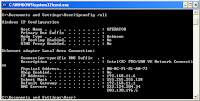
In the LAN, what similarities about the Physical (MAC) Addresses are seen? No Similiarities
Write down the IP addresses of any servers listed:
222.124.204.34
203.130.196.5
Write down the computer Host Name: Operator
Write down the Host Names of a couple of other computers: Operator and BillingDo all of the servers and workstations share the same network portion of the IP address as the student workstation? No
Using ping and tracert from a workstation
Step 3 ping the IP address of another computer
Is the ping successful? If not, perform approriate troubleshooting. Success.
If a second networked computer is available, try to ping the IP address of the second machine. Note the result.

Step 5 ping the IP address of a DHCP or DNS servers
Try to ping the IP address of any GHCP and/or DNS servers listed in the last exercise. IF this works for either server, and they are not in the network, what does indicate? Hasilnya adalah Request Time Out yakni tidak akan terhubung karena tidak satu lokal.
Was the ping successful? No
If not, perform appropriate troubleshooting.
Step 9 ping the web site
Ping some other domain names and record the results. For example, ping www.msn.de.
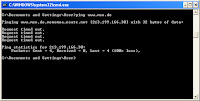 Step 11 Trace other IP addresses or domain names
Try tracert on the other domain names or IP addresses and record the results. An example is tracert www.msn.de.
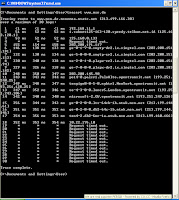 Step 12 Trace a local host name or IP address
Reflection
If the above steps are successfull andping or tracert can verify connectivity with an Internet Web site, what does this indicate about the computer configuration and about routers between the computer and the web site? What, if anything, is the default gateway doing? Yupz.. karena default gateway berfungsi menentukan arah atau jalan dimana kita akan melakukan pinging sampai ke tujuan kita, for example ping ke www.google.com, nah dengan ini maka akan tampil jalur – jalur koneksi yang di lalui sampai ke website tersebut.


